Adding links to your channel
- Open YouTube Studio on a computer and choose Customization.
- Open the tab with your channel’s details (labelled Basic info or Profile).
- Under Links, choose Add link, then enter a title and the address, for example bounley.me/yourname.
- Choose Publish.
You can add several links. The first one shows under your channel name with a count of the others, so put the one that leads to everything first. On a phone, the same settings are under your channel’s edit (pencil) button in the YouTube app, though the menus there change more often.
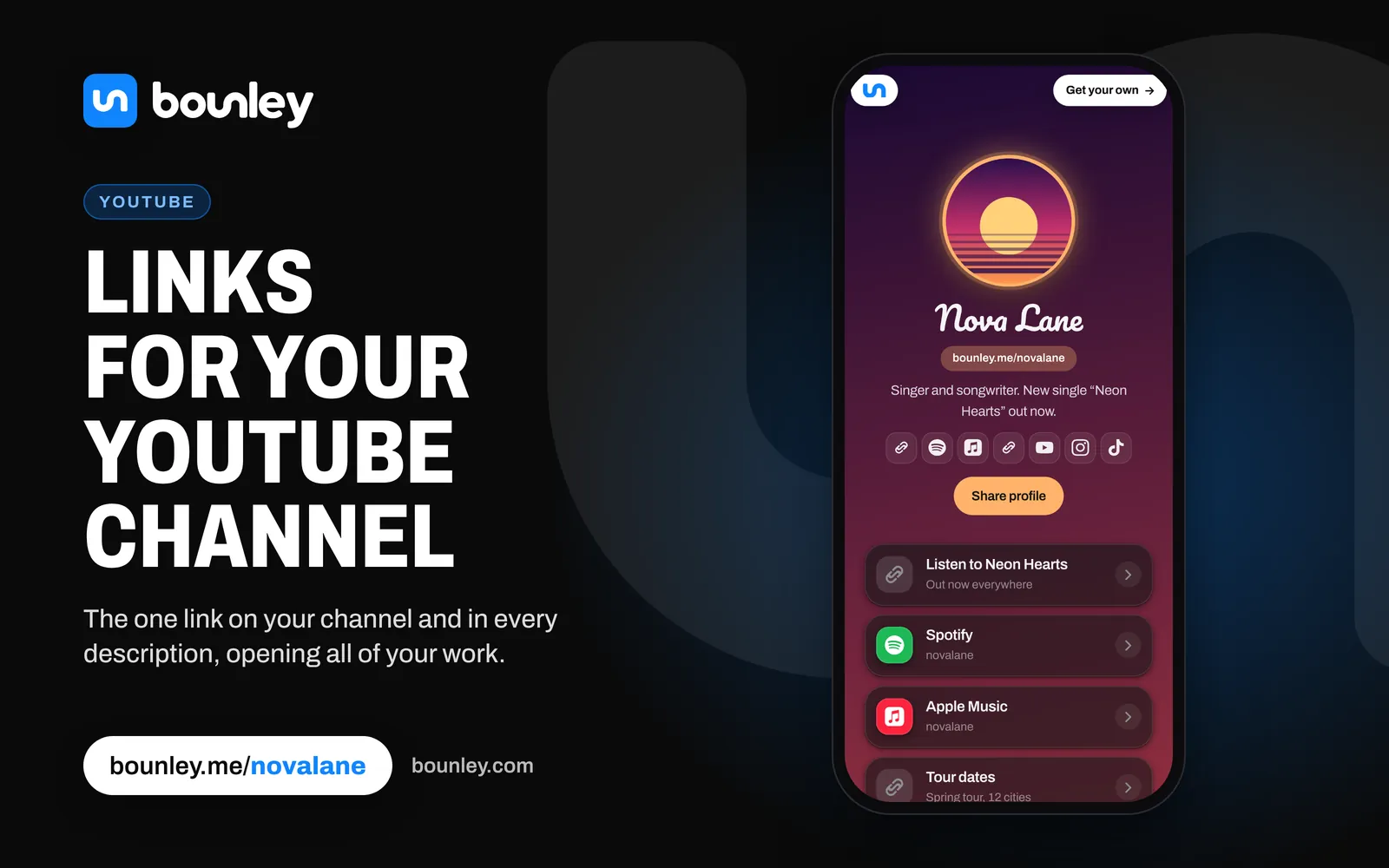
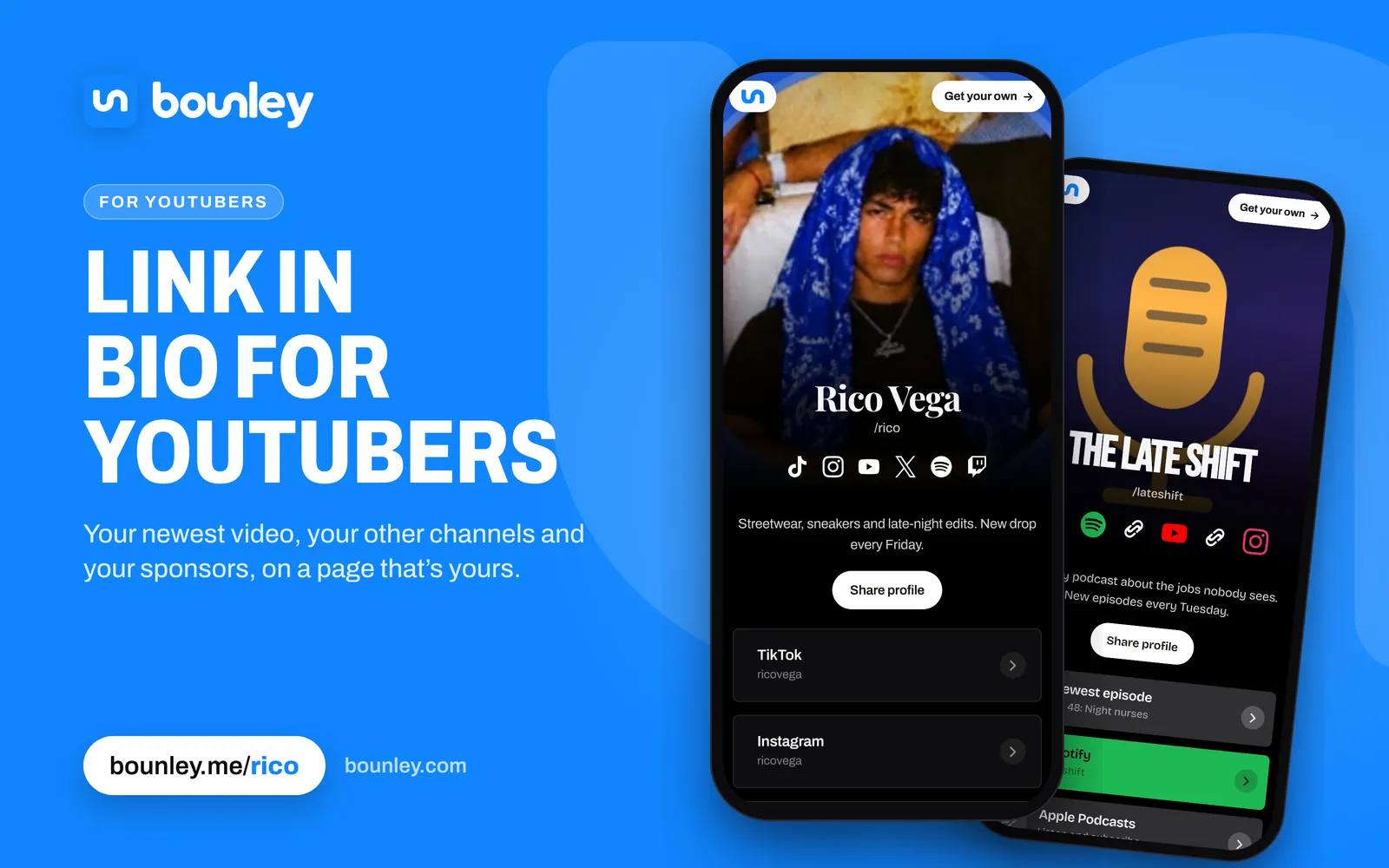
How to find and share your YouTube channel link
Your channel has a short address made from your handle: youtube.com/@yourhandle. That’s the link to share and to put in your other bios.
- In the YouTube app: tap You, then View channel, then the menu (three dots) and Share to copy the link.
- On a computer: open your channel and copy the address from the browser bar, or find it in YouTube Studio under Customization, next to your handle.
Menus in the app move from time to time; your @handle address stays the same unless you change your handle. To send people to your channel from everywhere else, put that address on your own site and link the site from every bio.
Links in video descriptions
Links in the descriptions of regular videos are clickable. Put your page near the top, where it shows before “more”, so viewers see it without expanding anything.
Links and Shorts
Links in Shorts descriptions and comments aren’t clickable, so Shorts viewers find you through your channel. That makes your channel links, and the page they open, the main way a Shorts viewer goes anywhere else.
The best link to put there: your own domain
yourname.com in your bio reads as a brand; a tool’s address, even bounley.me/yourname, reads as a tool. Your own domain is also the one link that never has to change: if you ever switch services, you point the domain somewhere new and every bio, card and old video still works. With Bounley Premium your site runs on your own domain, with an email address at it to match. See how to use your own domain as your link in bio.
Bring the channel to your page
A Bounley page can play your newest YouTube video, Short or live stream automatically, so whoever arrives from another app sees what you just posted without leaving.
Next steps
Add a business email to your channel’s About section so sponsors can reach you, ideally at your own domain: how to get a professional email address. For sponsorship pitches, see how to email brands.